
Job Worklist
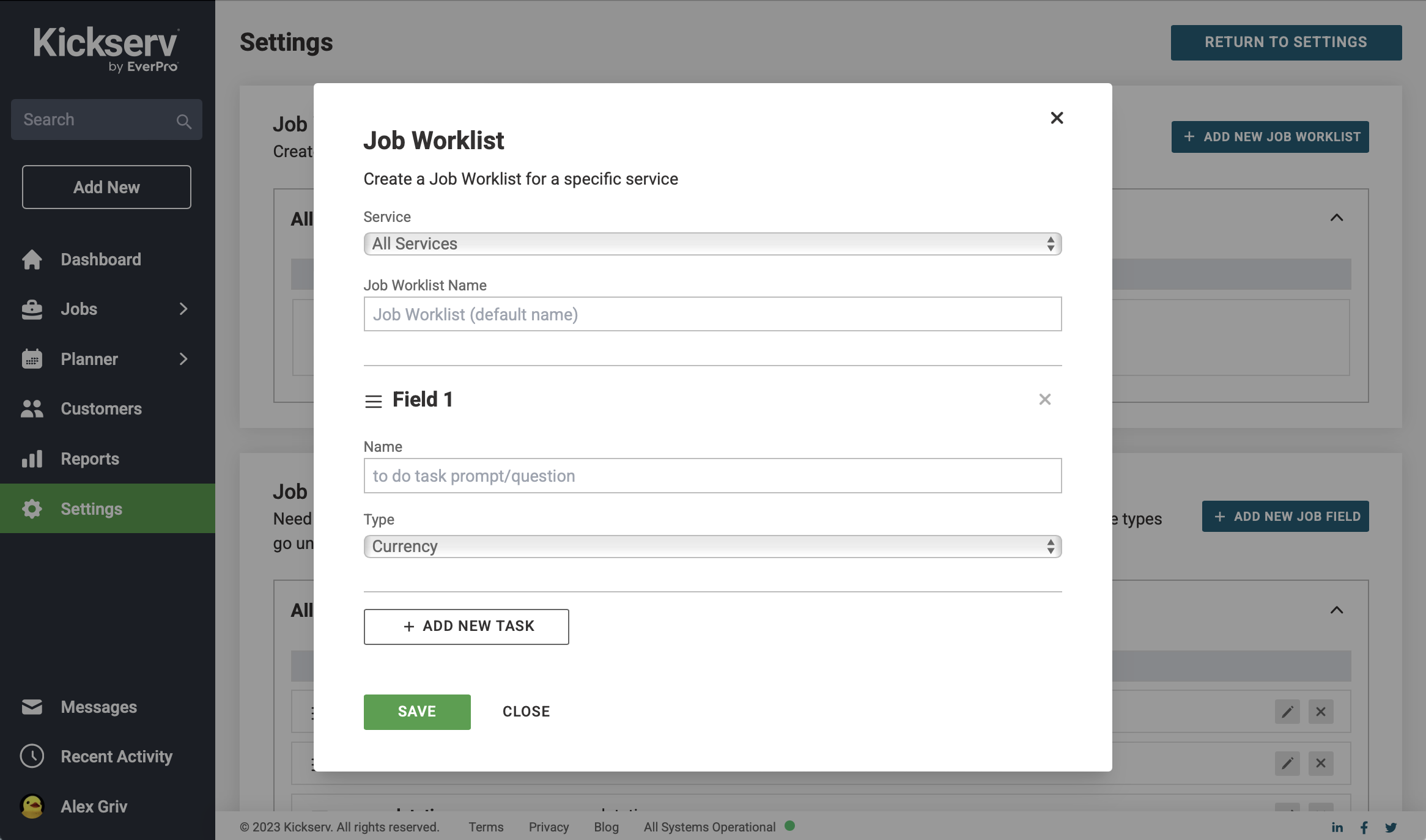
Job Worklist is a powerful tool that allows you to create custom lists for any job type. Actions get recorded in the job's history, enhancing team accountability and operational efficiency. These worklists will allow you to standardize processes, reduce errors, and improve communication between office and field teams.
Treat each list as a set of items to check off for each stage of the job. They can be named and organized according to specific services.
Note: Job Worklist is available for Run (formerly Standard), Scale (formerly Business) and Premium plan users. Flex and Start (formerly Lite) plan users can upgrade to access this powerful tool.
In this article, we will cover:
- How to create a Job Worklist
- Using Job Worklist in the field
- Tips for effective worklists
How to Create a Job Worklist
-
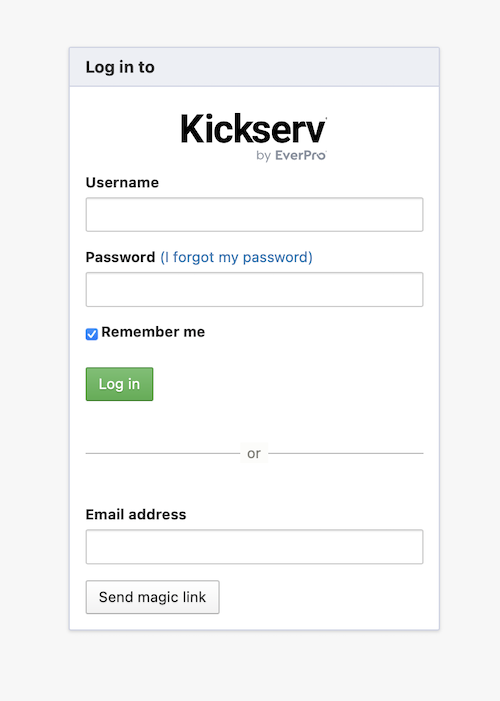
Log in to your Kickserv account
-
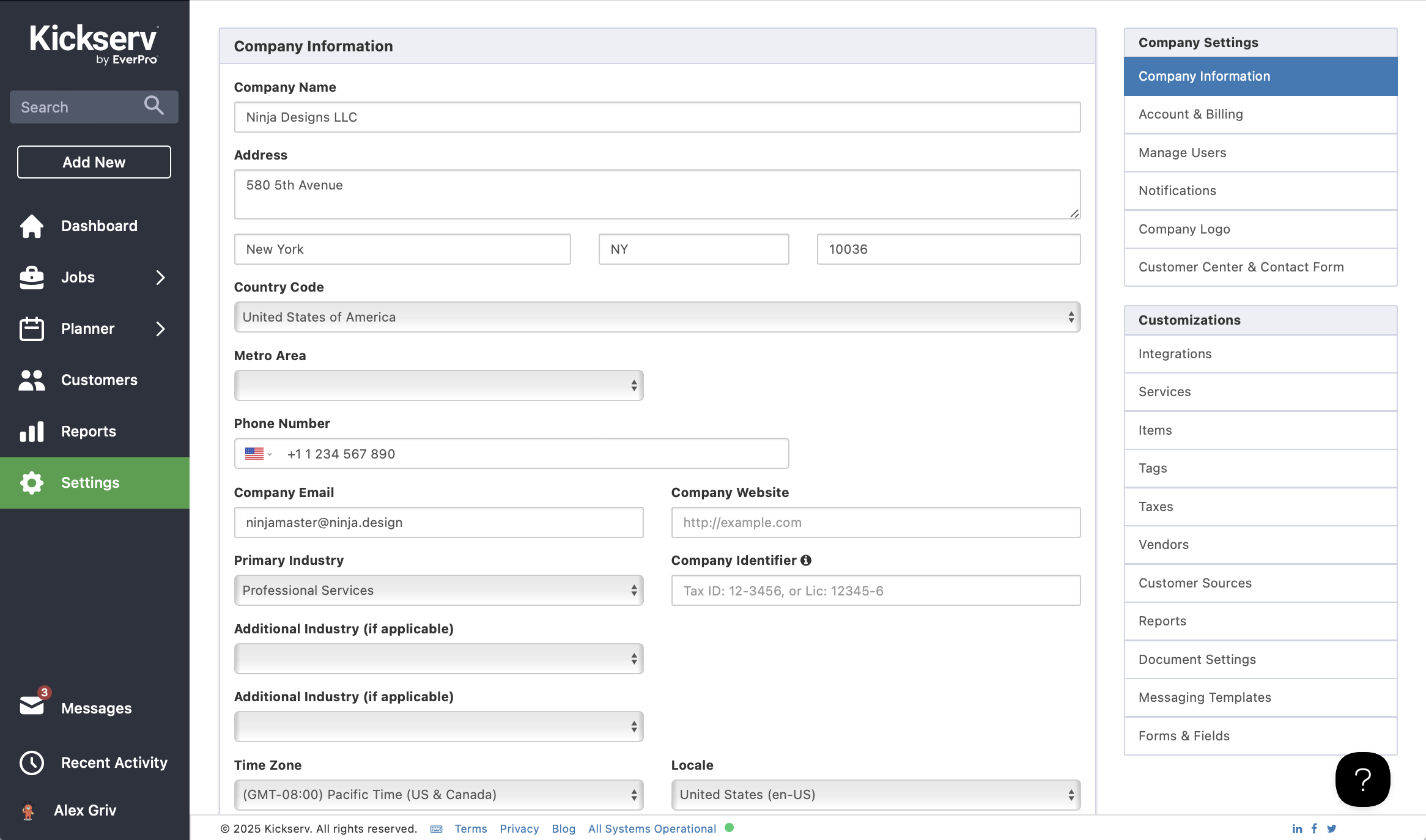
Navigate to the Settings page
-
Select "Job Worklist"
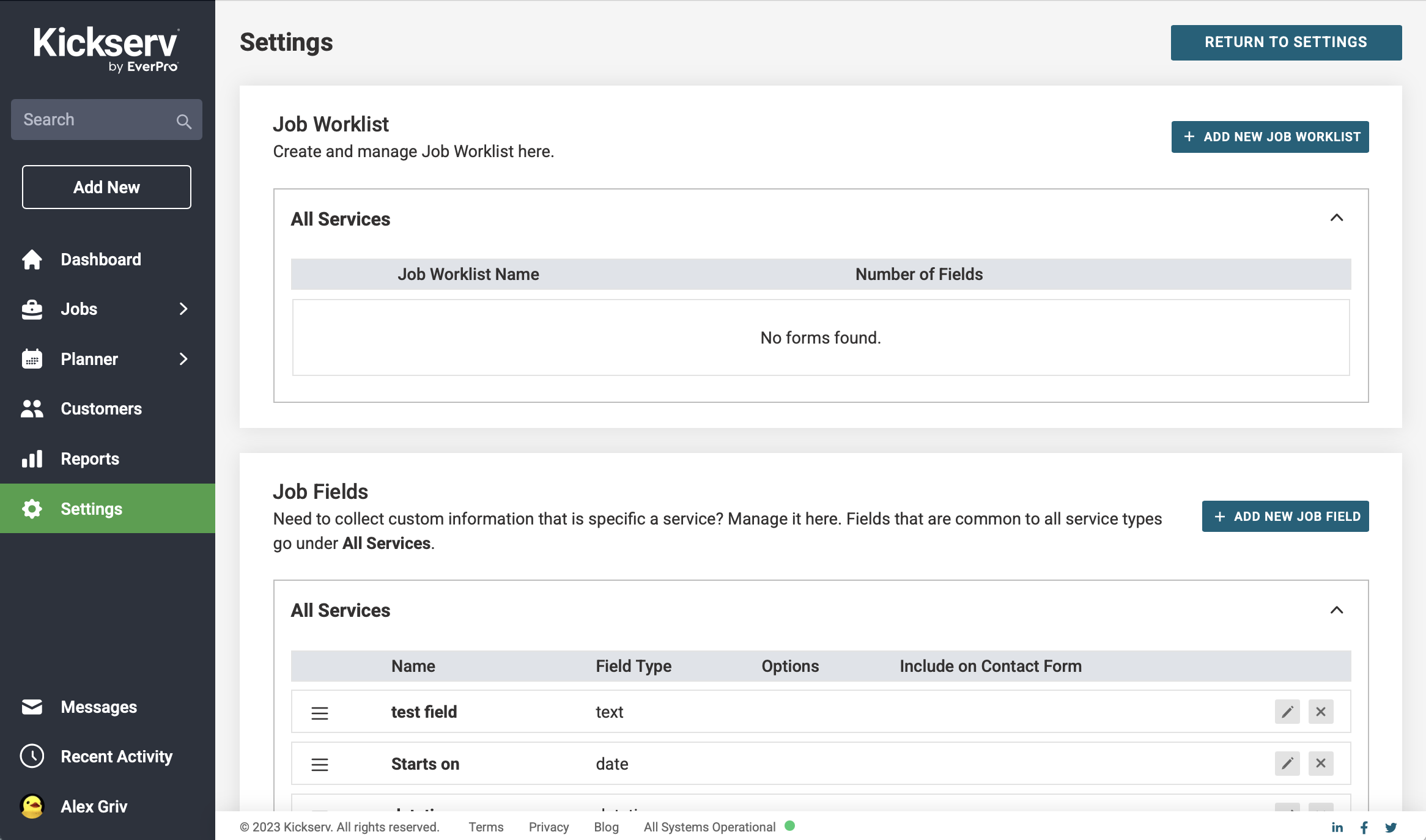
- Click "Create New Worklist"
- Name your Worklist and add desired fields
-
Save your Worklist
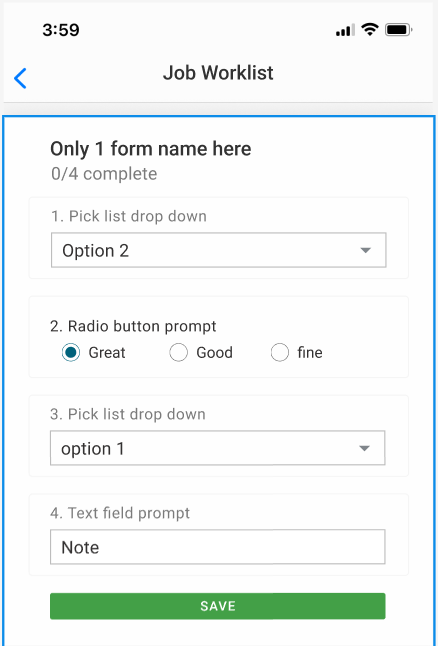
Using Job Worklist in the Field
-
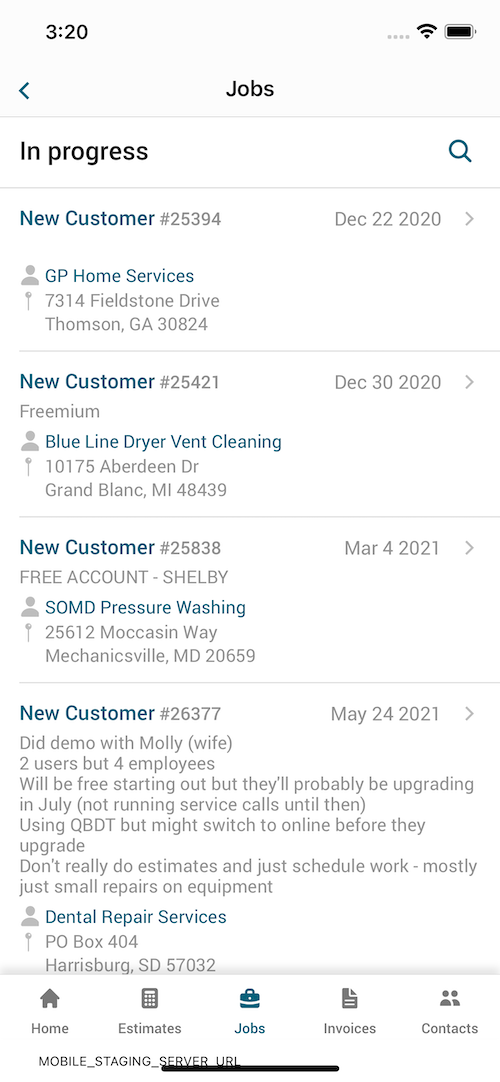
Open the Kickserv mobile app and navigate to the job details
-
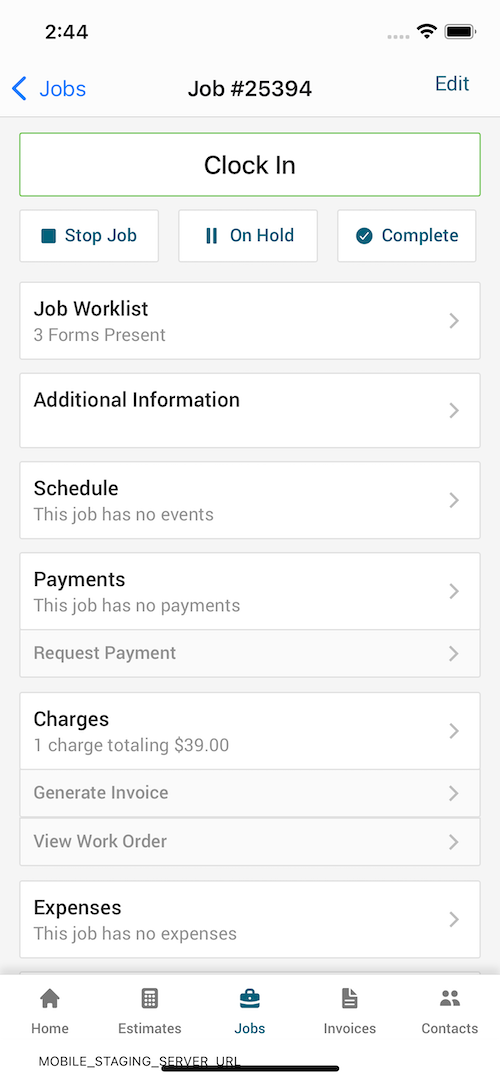
Tap on the "Job Worklist" tab
-
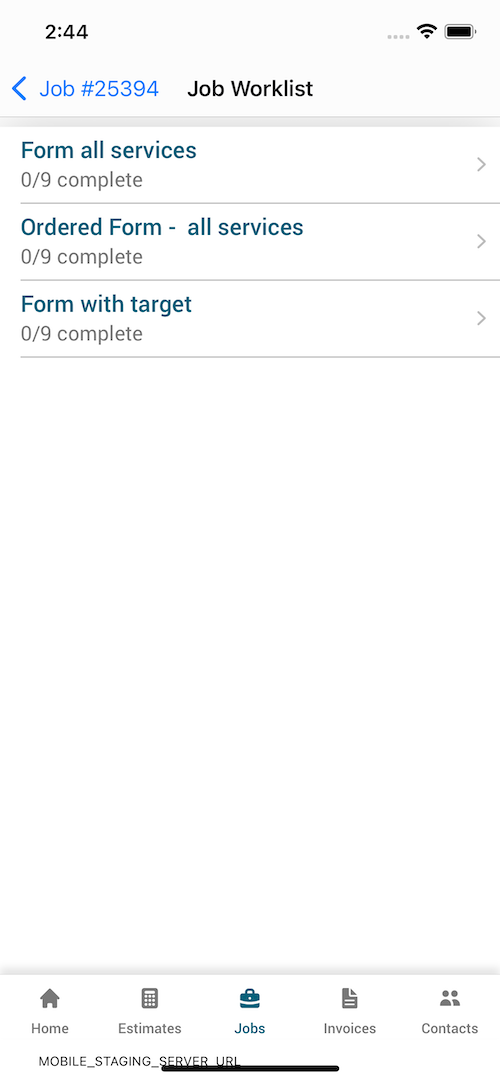
Select the appropriate Worklist
-
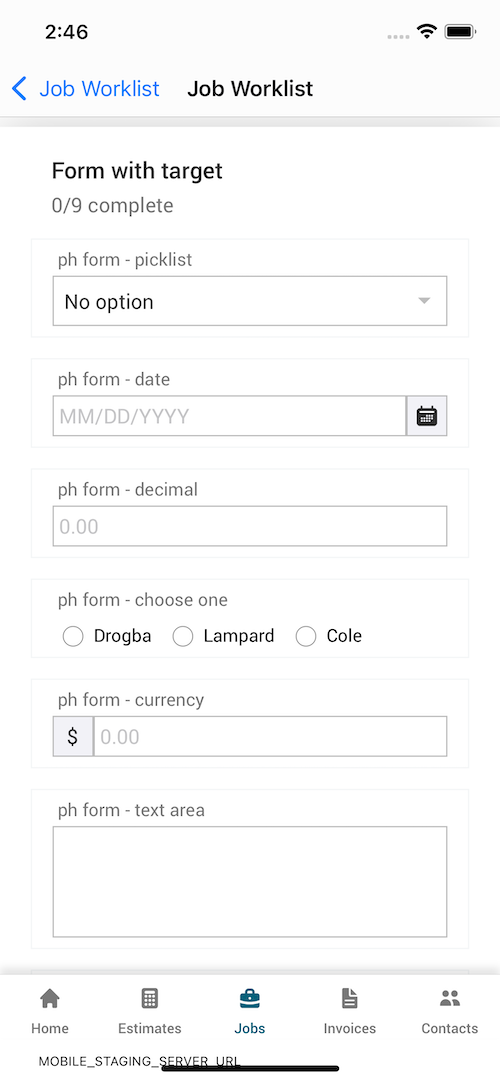
Complete the list of items as you perform the job
-
Save the completed checklist
Note: No special permissions are needed for access, so technicians can complete them with their existing permission level.
Tips for Effective Worklists
- Keep items clear and concise
- Use action-oriented language
- Group related items together
- Regularly review and update your Worklists based on team feedback.
- It would be helpful to keep worklist items distinct from the type of information held in custom fields.
For more information or assistance with Job Worklist, please contact our support team.